How to Set Up Zoom for Online Music Lessons That Sound Good
If your online music lessons happen on Zoom, a few minutes of setup can be the difference between a frustrating, muffled lesson and one that sounds and feels almost like being in the same room. Zoom is built for talking, not music. By default it actively works against your instrument, smoothing out exactly the detail your teacher needs to hear. The good news: a handful of settings fix it, and you only have to set them once.
Here’s how to get Zoom dialed in for music, whether you’re a student setting up before your first lesson or a teacher who wants to send students a simple guide.
Use the Desktop App, Not the Browser
Before anything else, install the Zoom desktop app rather than joining from a web browser. The full set of pro audio settings lives in the desktop app, and phone and tablet offer Original sound for musicians with fewer controls around it. On a phone or tablet, tap More → Audio settings during the lesson and choose Original sound for musicians under Microphone modes, so a lesson from a phone can still turn it on. This guide covers the desktop app. Download it from zoom.us, sign in, and you’ll have access to everything below.
The One Setting That Matters Most: Original Sound
By default, Zoom applies noise suppression and automatic volume control designed for speech. For music, this is the enemy. It ducks your volume, cuts sustained notes, and treats your instrument like background noise.
The fix is Original Sound for Musicians. In the desktop app, open Settings → Audio and find the Microphone modes section. Older clients label the same section Audio Profile, and older ones still call it Music and Professional Audio, with the first option named Use original sound for musicians. Either way, set:
- Original sound for musicians: on
- High-fidelity music mode: on
- Echo cancellation: off, but only if you’re wearing headphones, as covered below
Then, in the meeting, click the small arrow next to the microphone button and choose “Original sound for musicians” under Microphone modes. Recent versions of Zoom keep the setting between meetings, so at the start of your first lesson check once that it shows as on. Both you and your teacher should do this. This single change is the biggest upgrade you can make.
If You Cannot Use Original Sound
Some lessons have to run without original sound, on a borrowed computer or an older Zoom client where the option is missing. For those, open Settings → Audio, find “Background noise suppression” and set it to Low. On higher settings, Zoom mistakes your instrument for noise and chops it up. Original sound switches this same processing off on its own, so whenever you have original sound on there is nothing to change here.
Use Headphones and a Decent Microphone
Headphones are strongly recommended. They prevent the echo and feedback loop that happens when your teacher’s sound comes out of your speakers and back into your mic. Any wired earbuds work, and closed-back over-ear headphones are even better because they keep your teacher’s sound off your microphone entirely. If you ever have to run a lesson on speakers, leave echo cancellation switched on, since it is the only thing stopping that sound from looping back through your mic.
If you can, use an external USB microphone instead of your laptop’s built-in mic. It’s the single biggest jump in how clearly your teacher hears you. But even built-in mics work far better once Original Sound is on.
Get Your Camera Angle Right
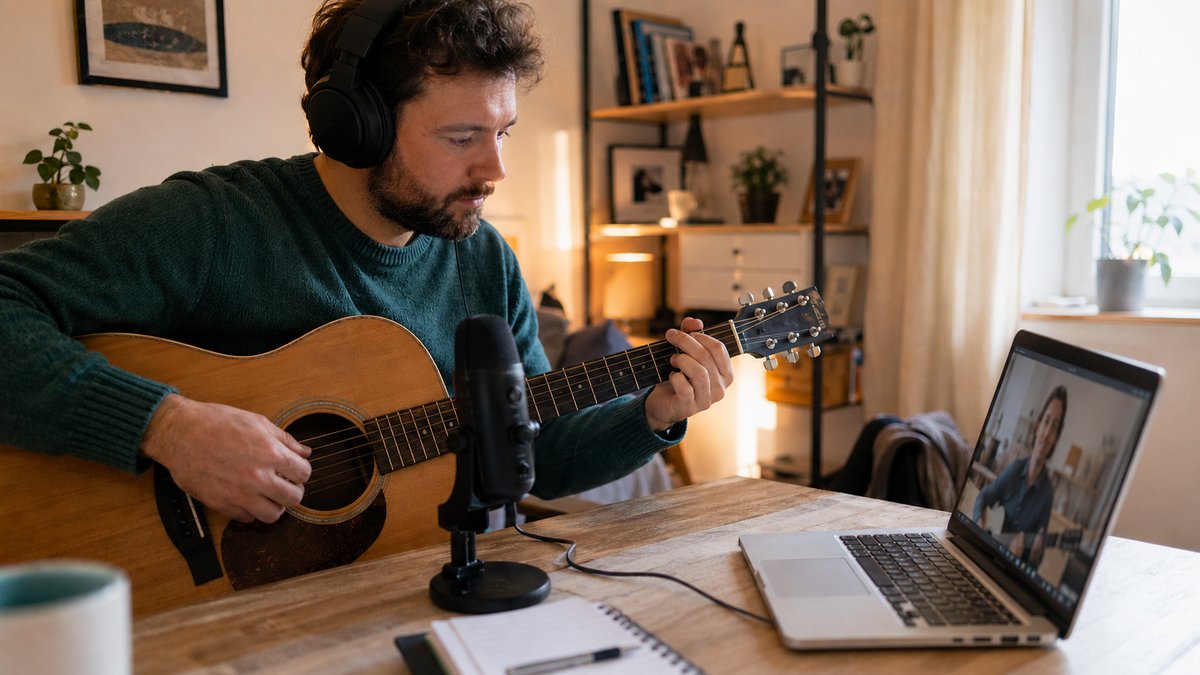
Your teacher needs to see what you’re doing, not just your face. Angle your camera so your hands and instrument are visible. For piano that means showing the keys and your hands, for guitar the fretboard, for winds and strings your posture and embouchure or bow arm. A laptop propped on a stack of books or a cheap phone tripod usually does the job. Good lighting helps too: face a window or lamp so you’re lit from the front, not silhouetted. Setting the camera up in the corner where you already practice saves you rebuilding it every week.
If Your Connection Is Slow or Lagging
If your video freezes, your audio cuts out, or your teacher says you’re breaking up, that’s almost always your internet connection rather than Zoom itself, and music suffers more than conversation when it stutters. Work through these in order:
- Use a wired connection. Plugging your computer into your router with an ethernet cable is the single biggest fix, far steadier than Wi-Fi.
- On Wi-Fi, get closer to the router. Move into the same room if you can, avoid walls between you and it, and use the 5 GHz network if your router offers one.
- Close everything else. Quit other apps, extra browser tabs, and anything downloading or backing up in the background.
- Pause other people’s usage. Ask anyone else at home to hold off on streaming, gaming, or big downloads during your lesson.
- Turn off your camera if audio is breaking up. Video uses the most bandwidth, and for music your sound matters far more than your picture.
- Restart your router. If it’s been running for weeks, unplug it for 30 seconds and plug it back in before your lesson.
- Check your speed. A quick test at fast.com confirms it. You only need a few Mbps of upload for a smooth lesson, and a stable connection matters more than a fast one.
- Last resort: use your phone’s hotspot. If your home internet is down, your phone’s mobile data can usually carry a lesson.
Zoom also shows a small network-quality indicator on your video. If those bars turn yellow or red, one of the steps above will usually clear it up.
If you’re brand new to online lessons, our walkthrough of what to expect in your first online music lesson covers what actually happens once you’re connected. And if your teacher uses a different platform, see our Google Meet setup guide or the full overview of the best video setup for online music lessons.
What the Settings Are Actually Protecting
Jason W. teaches online and says technique and hand position are the hardest things to get across a screen, because the subtle detail is what gets lost. He uses more than one camera angle, so a student can see precisely how something is executed instead of approximating it and relearning later. Original sound protects the audio half of that and camera placement protects the visual half. He also notes the part people do not expect: plenty of students are more comfortable on video than in a room, because being at home makes a shy student less self-conscious and easier to focus.
How to Find a Music Teacher on Tunelark
Every Tunelark teacher is vetted by working musicians and educators for teaching quality before they can list. Teachers set their own rates, and the roster covers every common instrument plus voice, with teachers across classical, jazz, pop, contemporary, and beyond.
To find the right fit:
1. Open the teacher list and filter by instrument, style, or student age.
2. Read bios carefully. Look for teachers whose described approach matches your goals.
3. Book a trial lesson with a teacher whose profile resonates.
4. After the trial, notice: did the teacher feel curious about you and clear about what they’d work on next? Both signals matter more than credentials.
The best music teacher for you isn’t the most credentialed or the most popular. It’s the one whose teaching style and personality fit how you learn. Tunelark makes the right fit easier to find.
Frequently Asked Questions
What is the best Zoom setting for music lessons?
Turn on Original Sound for Musicians (Settings → Audio → Microphone modes, labeled Audio Profile or Music and Professional Audio in older clients) and switch it on in the meeting from the arrow next to the microphone button. Both you and your teacher should switch it on, since the setting only changes the audio each of you sends. This stops Zoom from compressing and ducking your instrument, which is the most common reason music sounds bad on Zoom.
Why does my instrument sound bad or cut out on Zoom?
By default Zoom treats sustained notes as background noise and lowers your volume. Turning on original sound fixes it, because original sound switches Zoom’s noise suppression off. Using headphones also prevents echo that can trigger the problem, and an external microphone gives Zoom a cleaner signal to pass through in the first place.
Do I need headphones for online music lessons?
Yes, headphones are strongly recommended. They prevent the echo and feedback loop that happens when your teacher’s audio plays through your speakers back into your microphone.
Does the Zoom browser version work for music lessons?
The browser version works, but the pro audio settings that matter for music are only available in the desktop app, not in the browser. Phone and tablet also offer Original sound for musicians, with fewer controls around it than the desktop app gives you. Install the desktop app for the best experience.
Why does my Zoom lesson keep freezing or lagging?
That’s usually your internet connection, not Zoom. Use a wired ethernet connection if you can, move closer to your Wi-Fi router, close other apps and downloads, and ask others at home to pause streaming. If it’s still rough, turn off your camera. Video uses the most bandwidth, and for music your audio is what matters.
Keep reading
About Jennifer Heath
I'm Jennifer Heath, VP of Operations at Tunelark and a lifelong singer. I joined the company in 2020 and oversee much of what makes Tunelark work for students and teachers: hiring, training and supporting our instructors, student support, marketing and day-to-day operations. I started voice lessons at 7 and sang with touring choirs through my teens. Music belongs in every life, for the self-expression, the discipline, the comfort and the simple joy of it.